Opie is the AI chat assistant built into Ontraport. Ask it questions in plain language to find your way around the app, learn how features work, and get answers from your account data.
Open Opie from the bottom-right corner of supported screens in your account. Ask a question the way you’d ask a teammate, and Opie answers with an explanation, the numbers you asked for, or a link to the right record or screen.
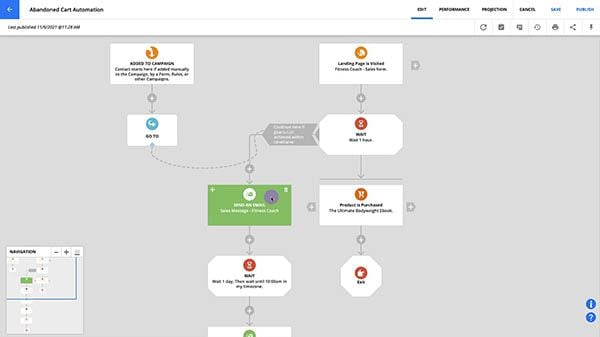
Opie can also build Contacts automations for you. Describe what you want, review the proposed flow, and Opie saves it as an unpublished draft for you to finish and publish. Opie doesn’t change records, publish pages or edit automations you’ve already saved, so you stay in control of every change in your account.
Opie is included with all account levels at no additional cost, and it doesn’t require a Dynamic CMS plan. We're turning it on account by account during the rollout, so if you don't see Opie yet, contact Support to check availability for your account.
Table of Contents
- Learn how a feature works
- Find the right record or screen
- Get answers from your account data
- Build and explain automations
Opening Opie and asking a question
Getting the best answers
Chat history and starting a new chat
Giving feedback on an answer
Troubleshooting Opie
- I don't see the Opie button
- An answer is wrong or the count looks off
- Opie can't find a record or answer a data question
- An answer is slow or a request fails
Contacting Support from Opie
What Opie doesn't do yet
Permissions, privacy and your data
Opie and the AI Assistant automation element
What Opie can help with
Opie can explain how a feature works, take you to the right record or screen, answer questions about your account data, and build and explain automations.
Learn how a feature works
Ask how to do something in Ontraport, and Opie explains it using our Support Center and help content, with links to the full articles when you want more detail.
- "How do I import contacts from a CSV?"
- "What is the difference between a tag and a group?"
- "How do I set up a payment gateway?"
Find the right record or screen
Describe where you want to go, and Opie gives you a direct link. This works for records, collections, editors and settings.
- "Open Alex Ortiz's contact record"
- "Show me contacts in California"
- "Take me to my email settings"
When you ask for a filtered list, like contacts in a state or with a tag, Opie builds the filtered collection for you and links to it.
Get answers from your account data
Ask about the records in your account, and Opie looks them up and answers with the numbers or a result card you can open.
- "How many contacts were added this month?"
- "Which contacts have a lead score over 80?"
- "How many open tasks do I have?"
Opie supports lookups, lists and counts for contacts, companies, tasks, custom objects and other supported account data, based on your permissions. Some data and reporting questions are outside this version's scope.
Build and explain automations
Describe the Contacts automation you need, and Opie proposes the triggers, steps, timing and branches. Review the proposal, ask for changes, and approve it when it’s right. Opie saves the automation as an unpublished draft, and you finish the setup and publish it in the Automation Editor.
- “Build a welcome automation for contacts who submit my consultation form. Send my existing welcome email, wait two days, then create a follow-up task.”
- “Explain what my Consultation Form Welcome Automation does.”
Learn more in Build an automation with AI.
Opening Opie and asking a question
- Click the Opie button in the bottom-right corner of a supported screen. Opie opens in a panel on the right side of your screen.
- The first time you open Opie, review the terms and click Agree and continue.
- Type your question in the Ask Opie field and press Enter, or pick one of the starter questions.
- Opie shows its progress while it works and displays the answer as it’s ready.
You can keep working while the panel is open and ask about any area of Ontraport. Name the screen, feature or record you mean so your question is clear. Opening Opie on a page doesn’t limit the conversation to that page.
Getting the best answers
Opie understands everyday language, so you don't need to learn any special commands. A few habits get you better answers:
- Ask one thing at a time. "How many contacts are in Texas?" works better than "How many contacts are in Texas and which ones bought something last month?"
- Use the names you see in the app. If your field is called Lead Score, ask about Lead Score. Include the object, tag or group name and any date range you need. For a record lookup, include a full name or email address to help Opie find the right match.
- Follow up in the same conversation. Opie remembers what you asked earlier in the chat, so you can say "now only the ones added this week" without repeating the whole question.
- Answer clarifying questions. If your question could mean more than one thing, Opie asks you to choose before answering.
- For troubleshooting, name the feature, describe what’s happening and include what you’ve already checked. For example, "My welcome email is not sending. Contacts reach the email step. What should I check next?"
Review answers before relying on them, since Opie can make mistakes. Open linked articles or records to check the advice, and compare counts with a collection using the same filters and date range. If Opie says it can't access the data, that doesn’t mean there are no matching records.
Chat history and starting a new chat
- Click the clock icon to see your past conversations and pick one up where you left off.
- Use the history search field to find an earlier conversation. To remove a conversation, use its delete action and review the confirmation before deleting it.
- Click the + icon to start a new chat.
Closing the panel does not start a new conversation. Use the + icon when you change topics, especially when earlier questions included filters or a date range, so they don’t affect your next answer.
Giving feedback on an answer
Every answer has a thumbs up and a thumbs down. Your feedback goes straight to our team and helps us improve Opie.
- Click thumbs up when an answer is right and useful.
- Click thumbs down when an answer is wrong, off topic, too long or unclear. An optional What went wrong? field appears. Add what you asked, what you expected and what happened, then submit the note. Your vote counts even if you skip the note.
Troubleshooting Opie
I don't see the Opie button
Opie only appears on supported screens, so try opening it from another screen in your account. We're turning Opie on account by account during the rollout, so if you still don't see it, contact Support to check availability.
An answer is wrong or the count looks off
Open the linked records or collection and check the filters, date range and user permissions. If earlier questions in the chat used different filters or dates, start a new chat and ask again with all your conditions. Use thumbs down on the original response and describe the mismatch. Contact Support if you still need help.
Opie can't find a record or answer a data question
Check the spelling, object name and identifying details, or ask for a simpler lookup or list. If Opie says a question is outside what it can do, or that it can't access the data, that doesn't mean there are no matching records. Check in the app directly or contact Support.
An answer is slow or a request fails
Let the current request finish before sending it again. If it fails, use Retry when offered or try the question in a new chat. If the issue continues, contact Support with your question and the error message.
Contacting Support from Opie
- Ask Opie to contact Support, for example, "I want to speak with Support." Opie shows the available options. Nothing opens until you choose one.
- Review the Include a summary of this conversation checkbox. It’s selected by default. Leave it selected to include a short AI-generated summary, or clear it before choosing a Support channel. Your full conversation transcript isn’t shared.
- Choose Chat with Support to open a live chat when Support is available. If live chat is unavailable, choose Submit a support ticket.
- For a ticket, review the form, add or correct any details, and submit it yourself. Opening the form does not create or submit a ticket.
- The Opie panel closes when the Support window opens. You can reopen your Opie conversation later. If a handoff fails, use the Help menu to contact Support and include the question, result and any error message.
What Opie doesn't do yet
This is an early version of Opie. Apart from building draft automations, it looks things up rather than making changes. Right now Opie doesn’t:
- Update, create or delete records. It links you to the record so you can make the change yourself.
- Build or publish pages, create forms, write email content, publish automations, or edit automations you’ve already saved.
- Build automations for objects other than Contacts.
- Send emails or SMS, or change account settings.
- Run complex or custom reports.
- Answer every question about every data type. Broadcast history, page visits and lookups of staff, users or roles are outside this version's scope.
- Answer questions unrelated to Ontraport or your account.
Opie is the foundation for more AI help in Ontraport, and we're working on expanding what it can do. Use the feedback buttons to tell us what you'd like Opie to do next.
Permissions, privacy and your data
- Opie uses your existing user permissions. Results can differ between users with different access, and Opie never gives you access to records, fields or settings you can’t already see. When building automations, Opie only uses elements you could add yourself.
- Opie only makes changes you approve. It saves an automation draft, or creates a missing email or tag, only after you confirm, and it never publishes anything. Everything else is read-only.
- Ontraport does not train AI on your data. Your questions and account data are used to answer you, not to train models.
- Use the clock icon to review your previous conversations. When contacting Support through Opie, you choose whether to include a conversation summary.
Opie and the AI Assistant automation element
Opie is different from the AI Assistant element in the Automation Builder.
- Opie is the chat panel that helps you use Ontraport, including building draft automations. It’s included at no additional cost, with access subject to the current rollout.
- The AI Assistant automation element uses your prompts to generate content and store the response in a field or memory. You can use that content in personalized emails or other automation steps. This element requires purchased AI credits.