The Stripe Payment Element (SPE) is a page element that embeds a secure checkout component directly into your order forms to automatically display the most relevant payment methods for each buyer.
Once the SPE is added to your pages, your customers will only see payment methods that work for them. You choose the payment methods you want in Stripe, then the element handles the rest. Customers will only see payment methods that are compatible with their location, device, currency, etc. Stripe manages this dynamically, so you don’t need to set up page or block conditions or worry about payment errors.
Using the SPE allows you to easily offer Buy Now, Pay Later (BNPL) options like Affirm and Klarna, which enable customers to pay over time while ensuring your business is paid in full upfront. Implementing these flexible payment methods can significantly drive growth by reducing checkout friction, maximizing conversion rates, and increasing average order value.
Stripe services are available to some account levels. Check out our pricing page to learn more.
Check out this webinar to master the Stripe payment element. You’ll learn how to add multiple checkout options, including Apple Pay, Google Pay, Link, and Buy Now/Pay Later, to slash cart abandonment and boost conversions. The hosts demonstrate how to connect Stripe to Ontraport, embed the element on your order forms, and answer live questions about features and limitations.
Table of contents
Integrated Stripe services
• Stripe Connect
• Stripe Tax
• Stripe Payment element
What is a payment method?
• Wallets and subscriptions
Buy now pay later (BNPL) Overview
• Why am I seeing Klarna/Affirm on my checkout?
• Pricing & fees
• How refunds work for BNPL
• Disputes and chargebacks for BNPL
• How to disable BNPL methods
• Subscriptions with BNPL
• See how your payment methods are performing
Integrated Stripe services
Ontraport integrates seamlessly with Stripe to give you powerful, flexible tools for accepting payments, managing payouts, handling taxes, and optimizing checkout experiences. Whether you’re running simple one-time purchases or complex subscription models across multiple regions, these integrated Stripe services help you streamline payment operations while improving the buyer experience.
Stripe Connect
Back to top
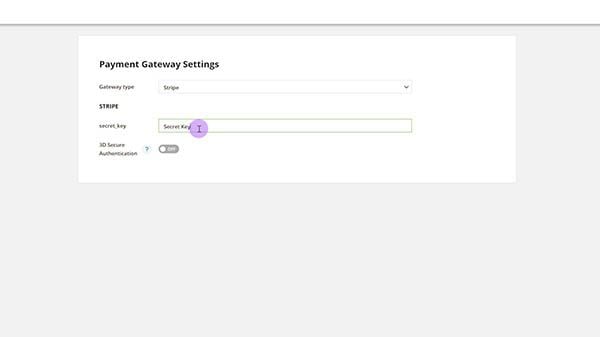
Accept payments and send payouts by easily connecting your Stripe or Stripe Token payment gateway with your Ontraport account.
Learn more
Stripe Tax
Back to top
Stripe Tax empowers your businesses to generate revenue around the globe without being impacted by complex tax compliance laws. It dynamically calculates tax based on customer locations and clearly displays it for your customers so they always know what they are paying.
Learn more
Stripe Payment element
Back to top
The Stripe Payment Element can be used to process other types of payment than just credit cards using the Stripe Payment Gateway. The payment element allows you to offer Buy now, pay later options and works across one-time purchases and subscriptions.
The Stripe Payment element is a page element that embeds a secure checkout component into your order forms. It securely collects payment information and automatically shows the best payment methods for each buyer at checkout.
Fields required by Stripe
The Stripe Payment Element automatically collects all required payment fields based on the payment method selected by your customer. The following fields are required for every payment:
- Card number
- Expiration date
- CVC/CVV
- Country
- Zip/Postal code
If you place any of those fields on your Ontraport form, the SPE won’t require your customer to fill them out again. And if the selected payment method requires any other information to process payment, the SPE will display them for your customer.
Recommended Ontraport form fields
Always include fields to capture all of the contact information you need on your Ontraport form, because the fields provided by the SPE are solely focused on the information needed to process a payment. Those requirements don’t include name and email, which are critical fields for your contact records.
Adding the SPE to your pages
The element replaces the Credit Card page element. If you have existing order forms that you’d like to update with the SPE, you need to remove the credit card fields before you can drag the SPE to your form.
If you are creating a new order form from scratch, include Ontraport contact fields for at least name and email. Then the only required elements are the SPE and a submit button, however we recommend that you always include an Order Summary element so your customers know exactly what they are paying.
If you are selling a physical product, be sure to include the Shipping Address fields to your form because those fields are not required to process payment, so the SPE will not collect that information.
What you control in Ontraport
When you create forms that use the SPE, you can customize:
- Normal Ontraport form settings
- Contact fields
- Thank you page
- Opt in settings
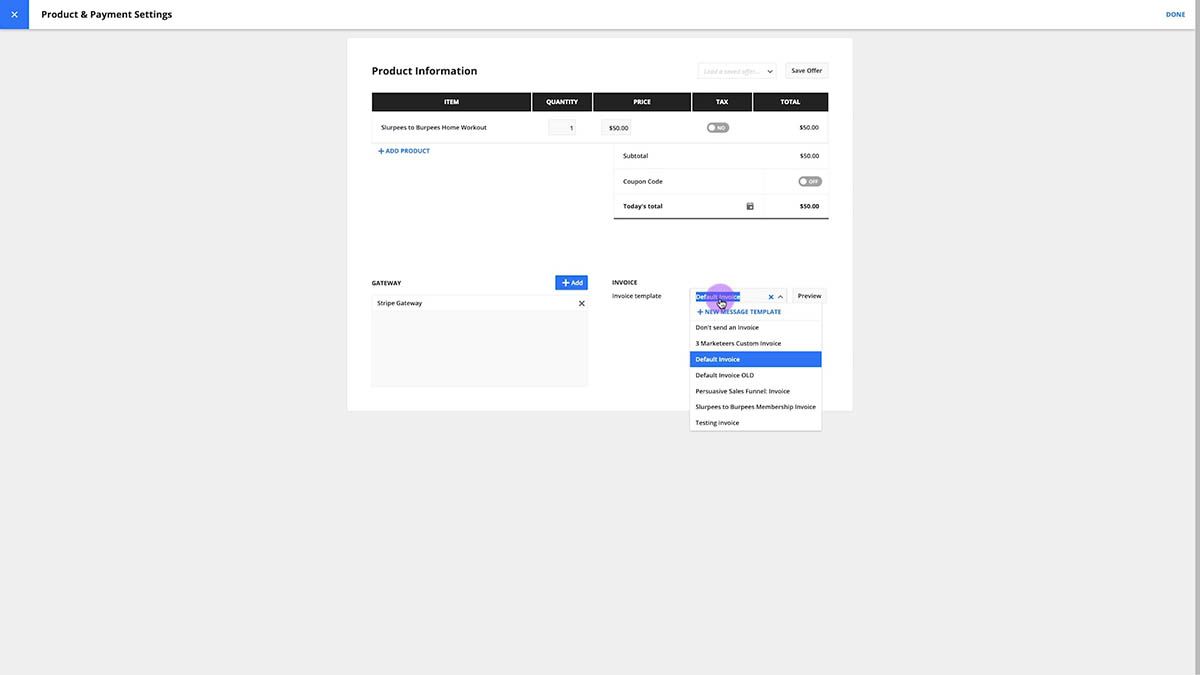
- Product offer
- Basic SPE styling
- Layout
- Colors
- Border style
You do not choose which payment methods will display on the SPE in Ontraport.
Learn more
What you control in Stripe
In your Stripe Dashboard, you can choose which payment methods you want to offer to your customers. Enabling payment methods does not mean that these methods will display for every customer because the payment methods display dynamically based on:
- Customer’s location: The element detects the customer’s country and shows payment methods available in that region.
- Currency: Only payment methods that support the transaction’s currency are shown.
- Device and browser: Some payment methods are only available on certain devices or browsers.
- Payment method configuration: Only payment methods you’ve enabled in your Stripe Dashboard or integration are displayed.
- Amount: Some payment methods have minimum or maximum transaction amounts.
- Customer’s language: The element can localize payment method names and instructions based on the customer’s browser language.
What is a payment method?
Back to top
Payment methods refer to the ways customers pay for a purchase, and they include a wide range of global and local options beyond standard credit cards. By enabling payment methods in your Stripe dashboard, you can offer them to customers when using the Stripe Payment Element.
Common payment methods include:
- Cards: The dominant global payment method, which includes networks like Visa, Mastercard and American Express.
- Wallets: Digital containers for cards or balances, such as Apple Pay, Google Pay, etc.
- Buy Now, Pay Later (BNPL): Financing options that allow customers to pay in installments, such as Affirm and Klarna.
Wallets and subscriptions
Back to top
Stripe wallets allow customers to pay online or in person using two methods:
- Saved credentials: A secure token representing a card or bank account.
- Stored balance: Funds held directly in the customer’s wallet account.
During checkout, the wallet provider authenticates the customer and sends a secure payment token to your processor. This ensures you never have to handle sensitive payment data directly.
You can use wallets to set up recurring subscriptions. However, keep the following restriction in mind:
- The wallet details only authorize the specific subscription created during the initial checkout.
- You cannot reuse these stored wallet details to trigger separate, one-off charges through the API later.
Buy now pay later (BNPL) Overview
Back to top
Buy Now, Pay Later (BNPL) is a payment feature designed to offer customers greater payment flexibility and convenience.
BNPL allows retailers to reach buyers who want to pay over time. This method lets buyers customize their payment terms and break up purchases into smaller installments. While the customer may pay nothing or only a portion of the total cost at the time of checkout, the business is paid in full and up front.
You can offer your customers BNPL options when you add the Stripe Payment Element to your order forms.
BNPL options are managed in your Stripe Dashboard. Enabling providers like Affirm, Afterpay, Klarna, and Zip can help your business:
- Maximize checkout conversion and increase average order value.
- Reach a wider and more diverse audience for growth.
- Reduce fraud and increase transaction speed.
Why am I seeing Klarna/Affirm on my checkout?
Back to top
You are seeing these options because Buy Now, Pay Later (BNPL) methods are enabled by default for convenience to offer greater payment flexibility.
However, these options only appear when the specific transaction is eligible. Eligibility varies by location and your Stripe account’s configuration. The element uses information like your industry and location to determine if a specific BNPL method, such as Klarna or Affirm, should be displayed.
Pricing & fees
Back to top
You will only incur a fee for BNPL options if a customer actually uses a BNPL method to complete a purchase. There is no cost to you for simply having these options enabled if they are not selected by the buyer.
While specific BNPL transactions do carry an additional fee, this cost is balanced by the value the feature delivers to the business. Offering these flexible payment options can help maximize checkout conversion and increase average order value by reaching buyers who prefer paying over time.
Learn more
How refunds work for BNPL
Back to top
When enabling Buy Now, Pay Later (BNPL) options, it is important to understand how refunds and disputes are managed, particularly for providers like Klarna and Affirm.
While the transaction originates on your site, the actual refund and dispute processes still flow through the payment method provider's systems. You should rely on these partners to handle specific payment-related issues.
The timelines and flows may differ from standard credit card refunds. For specific instructions on handling refunds for BNPL payments, please refer to the provider-specific support pages:
Learn about Affirm refunds
Learn about Klarna refunds
Disputes and chargebacks for BNPL
Back to top
When managing disputes, it is critical to understand the division of responsibility. BNPL providers have their own dedicated support and processes to handle payment-related issues.
If you are notified of a dispute through your Stripe dashboard or email, it is ultimately the BNPL provider that reviews the evidence and makes the final ruling on the dispute.
When a customer disputes a payment, Stripe notifies you via email, Dashboard, or API and withholds the disputed amount up to 30 days.
Affirm dispute process
You have 15 days to upload supporting evidence. For example, tracking ID, proof of delivery or return confirmation.
Affirm reviews within 15 days of submission and makes a ruling:
- If the customer wins, then the debit becomes permanent.
- If you win, then the funds are returned.
Learn more about Affirm disputes
Klarna dispute process
When a customer disputes a payment, Klarna opens an inquiry to allow resolution before a chargeback.
- During this stage, Klarna pauses the customer’s repayments.
- You can contact the customer and issue a refund or let the inquiry escalate.
- Inquiries are automatically escalated to a chargeback after being unresolved for over 21 days.
Once the inquiry is escalated, Stripe withholds the disputed amount and any associated fee.
You have 12 days from escalation to submit evidence.
Then Klarna reviews the evidence and makes a ruling:
- If you win, then the funds and fees are returned.
- If the customer wins, then the debit becomes permanent.
Learn more about Klarna disputes
How to disable BNPL methods
Back to top
Buy Now, Pay Later (BNPL) methods, such as Affirm and Klarna, are enabled by default for your convenience to ensure you can immediately capture sales from customers who prefer paying over time.
However, opting out is available at any time if you decide these methods do not fit your business model.
Disabling BNPL methods can potentially impact your sales in the following ways:
- Buyers will no longer see the flexible BNPL payment options at checkout.
- Removing the options may lead to lower conversion rates and higher cart abandonment because customers often leave if their preferred payment method is unavailable.
Follow these steps to disable payment methods
Subscriptions with BNPL
Back to top
Yes. To use BNPL for your recurring products, you simply need to update your checkout pages by replacing your old credit card fields with the new Payment Element. Once implemented, the Payment Element will automatically display eligible BNPL options to eligible customers for your subscription products.
See how your payment methods are performing
Back to top
Your Stripe Dashboard is the best place to get information about how your different payment methods are performing.
Go to the Payment Methods analytics page to see how frequently your customers use alternative payment methods (such as Link or Buy Now, Pay Later) compared to card payments. These reports are not available inside of your Ontraport account.
To understand the impact of these methods on your business, you can analyze the following metrics:
Payment method share: This metric shows the distribution of different payment methods used by your customers within a given time period. You can view this data by:
- Share of payments: The total number of accepted payments made using a specific method.
- Share of volume: The total amount of payment volume processed using that method.
Average order value (AOV): This chart helps you identify which specific payment methods drive incremental spend. For example, tracking AOV can reveal if Buy Now, Pay Later methods are encouraging higher spending by allowing customers to pay over time.
You can customize these views using filters to control the charts and tables:
- Currency: View data for payments made in specific currencies.
- Connect: If you operate a platform, you can choose to include or exclude aggregated data from your connected accounts.