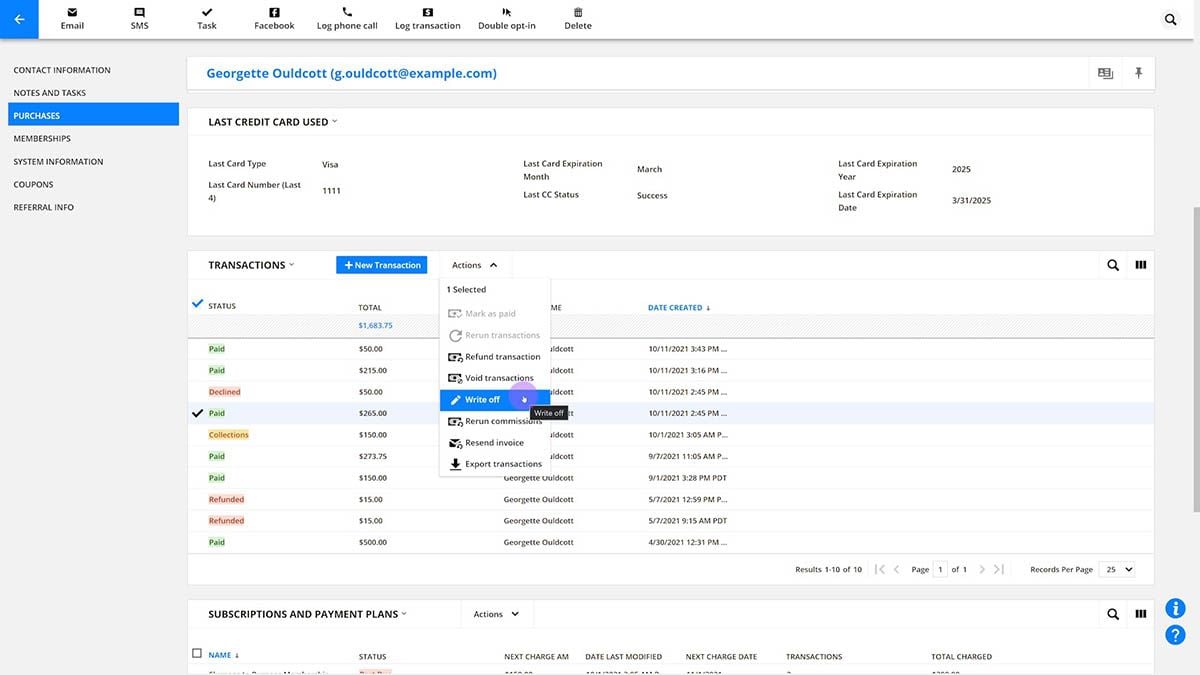
If you offer products with recurring payments or trials in Ontraport, you can manage these open orders directly within your customers' contact records. In this article, you will learn how to identify the different types of open orders and how to effectively manage them. We will walk you through how to edit existing orders to update details like the next charge date, credit card information, and invoice templates, as well as how to cancel subscriptions and remove membership site access.
Open Orders Open orders are created for subscriptions, payment plans and trials. Here is how they differ:
- Subscription: A recurring payment with no set end date.
- Payment plan: A recurring payment with a set number of payments and therefore an end date.
- Trials: Open orders are also created when you add a trial to a product. If the trial is added to a one-time sale, then users will see an open order with one payment remaining.
Table of contents
Manage open orders
• Edit open orders
Manage open orders
- View a contact record in detail view.
- Click on the Invoices and payments tab.
- Scroll down to subscriptions and payment plans to view any open orders with recurring payments, then
- Select the order you want to edit.
- Click Edit to open the product grid and make changes to the subscription.
- Click Delete to remove the open order from the contact’s record and cancel its recurring payments.
Edit open orders
Once you have located an open order in a customer's contact record, clicking Edit will open a screen where you can make changes. The Edit open order screen gives you the flexibility to adjust everything from core product details and billing frequency to the customer's payment method and next charge date.
Here is a breakdown of all the specific changes you can make:
Product information
This section allows you to change the core product details and payment intervals. From here you can:
- Add or remove products
- Update tax and shipping settings
- Alter the next date the open order will charge.
Payment information
- Update billing details
- Change or update the invoice receipt template used for future payments.
- Choose to automatically send invoice receipts when each recurring payment is charged.
- Change the payment gateway for future payments.
- Set a partner (affiliate) to earn commission on the open order.
- This will only affect the first or last referrer fields for these transactions, not for the contact as a whole.