Sometimes, pages may appear differently than you expect. You may see old content, experience slow form submissions, or your page may appear differently than anticipated. Fortunately, you can take some simple steps to resolve many common problems.
This article shows some basic troubleshooting actions and recommendations based on specific issues. Let’s dive in and explore how you can keep your page-building experience hassle-free!
Table of Contents
General troubleshooting
• Supported browsers
• Hard refresh
• Clear browser cache
• Clear browser cookies
Page troubleshooting
• Slow form submissions
• My content isn’t appearing on my page
• I’m seeing a completely different page
• “Your page isn’t turned on yet” error
General troubleshooting
Sometimes, web pages don’t work the way they’re supposed to. Maybe a picture doesn’t load, a button won’t work, or the page just looks weird. There are four main things you can try to fix these problems: using a supported browser, doing a hard refresh, clearing your browser’s cache, and clearing cookies.
Let’s learn what each of these does and how they can help!
Supported browsers
Back to top
Ontraport works best with Firefox or Chrome. Browsers such as Safari and Microsoft Edge will show you a warning when you attempt to log into your account.
Hard refresh
Back to top
A hard refresh is like telling your web browser, “Hey, forget what you remember about this page and get a brand-new copy!” Usually, browsers save some parts of pages to make them load faster, like pictures and scripts. But sometimes, the saved version is old and doesn’t match the updates on the website. This can make the page look broken or not work right.
Doing a hard refresh makes sure the browser gets the newest version of everything on the page. This can help if a page loads wrong or doesn’t show everything it’s supposed to. It’s like hitting the “reset” button so you see the page just as it is now.
How to do a hard refresh:
- On a Mac: Press Option + ⌘ + E, or press ⌘ + R. You can also hold ⌘ and Shift, then press R.
- On Windows: Hold Ctrl and press F5, or hold Ctrl and Shift, then press R.
Clear browser cache
Back to top
Clearing your browser’s cache can help when a page looks strange or doesn’t work properly.
What is browser cache?
The cache is like a memory box where the browser keeps parts of web pages (like images and scripts) so they load faster. But if the website gets updated, the old stuff in the cache might cause problems, like missing pictures or styles that look wrong.
Why should I clear my browser's cache?
When you clear the cache, it tells the browser, “Hey, let’s get all the newest stuff for this page!” This helps make sure everything shows up correctly and can fix any mix-ups between old and new versions of the site.
How to clear the cache:
Google Chrome
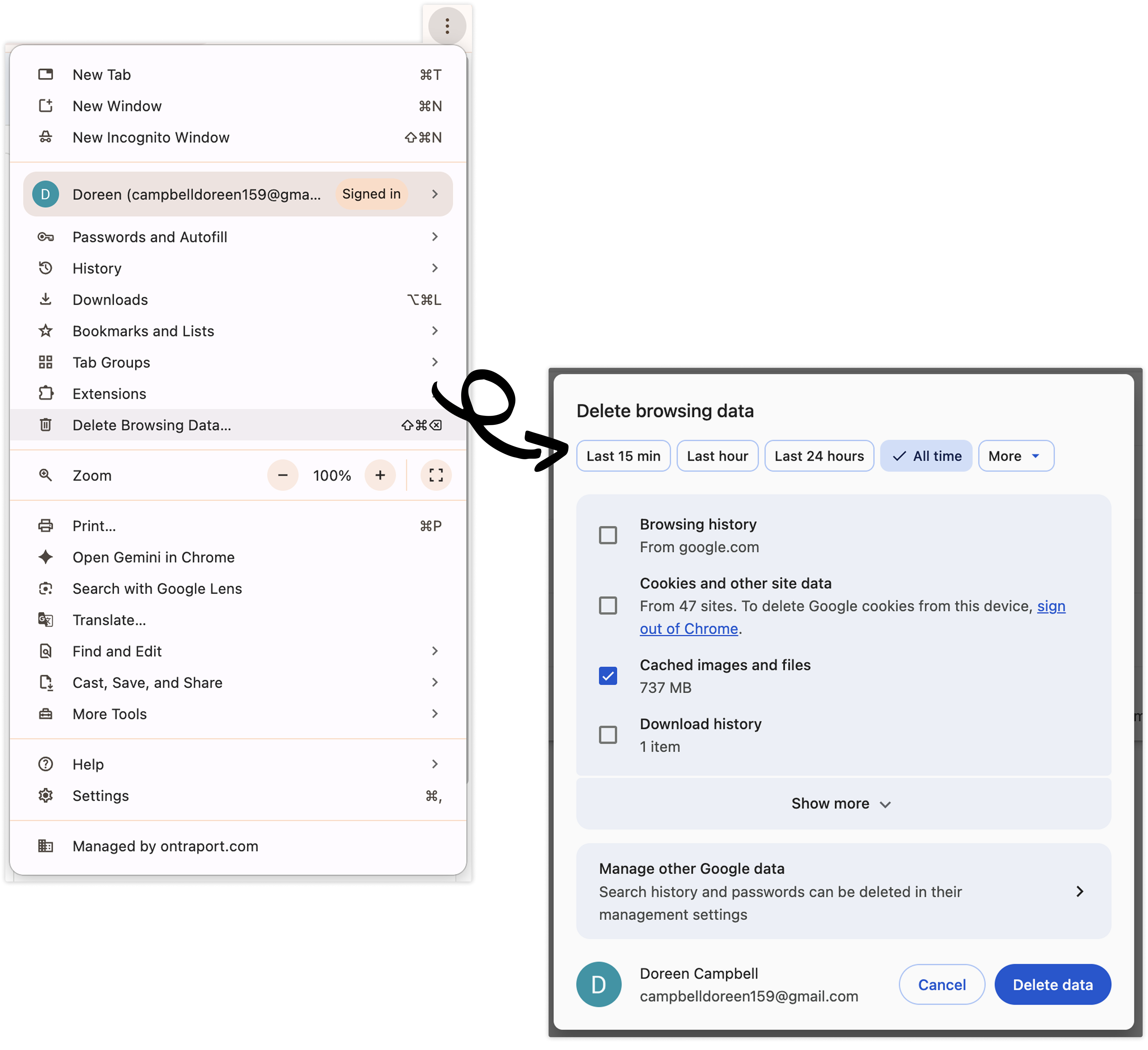
- Open Chrome, click the three dots in the top right corner → Delete browsing data. Then select the types of data you want to remove, such as cached images and files. Choose a timeframe and click Delete data. To see the changes, you can close and restart your browser.
Mozilla Firefox
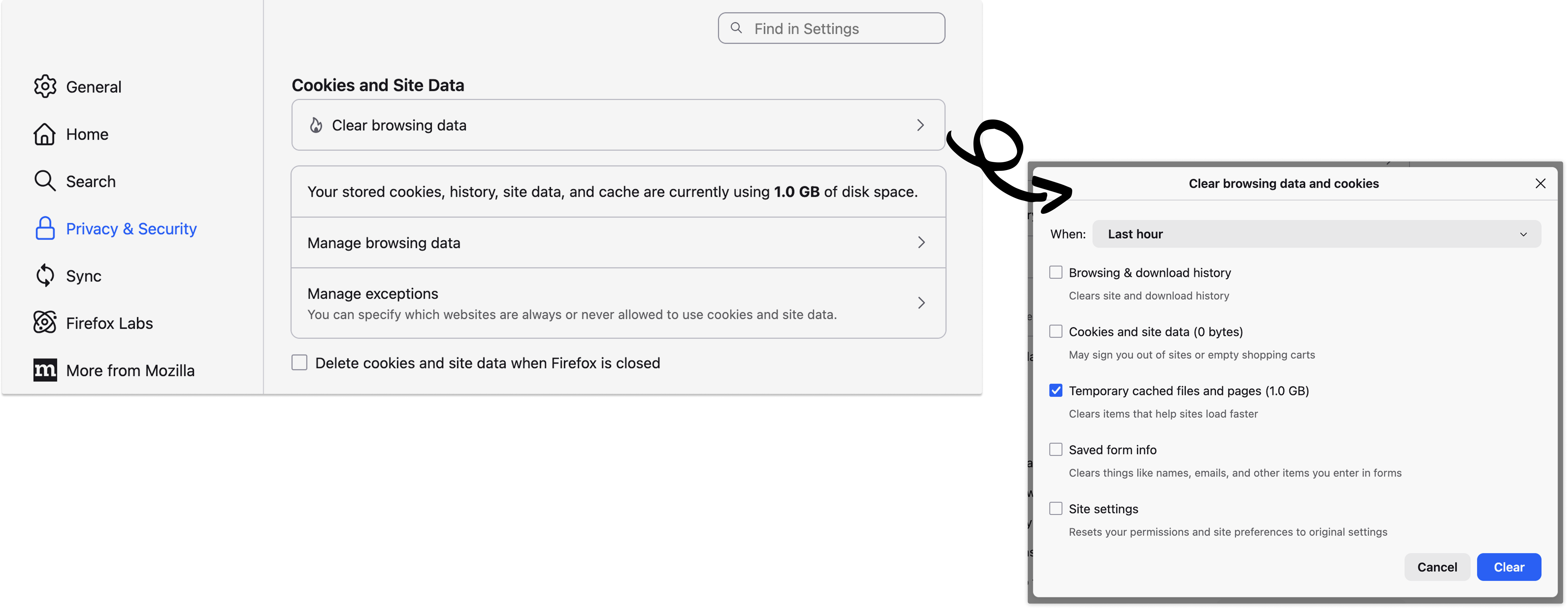
- Open Firefox, click the three lines in the top right corner to open the Firefox menu → Settings → Privacy & security. Scroll down to the “Cookies and site data” section and click Clear data. Click Clear in the dialog.
Clear browser cookies
What are browser cookies?
Cookies are tiny pieces of information that a website saves on your browser to remember things about you, like your login info or what you like. Sometimes, cookies can get messed up or have old information that causes problems, like login errors or sites not remembering your choices.
Why should I clear browser cookies?
Clearing cookies is like cleaning out your snack drawer to get rid of the old, stale cookies. It helps the website work better by letting it start fresh with new, up-to-date information. This is useful if you’re having trouble staying logged in or if a website isn’t behaving as it should.
How are browser cookies different from browser cache?
Cookies are different from the cache because cookies store information specific to you and your browsing, while the cache saves parts of pages to load them faster. Clearing cookies can fix problems with login or preferences, while clearing the cache helps with how the page looks and works.
How to clear cookies:
Google Chrome
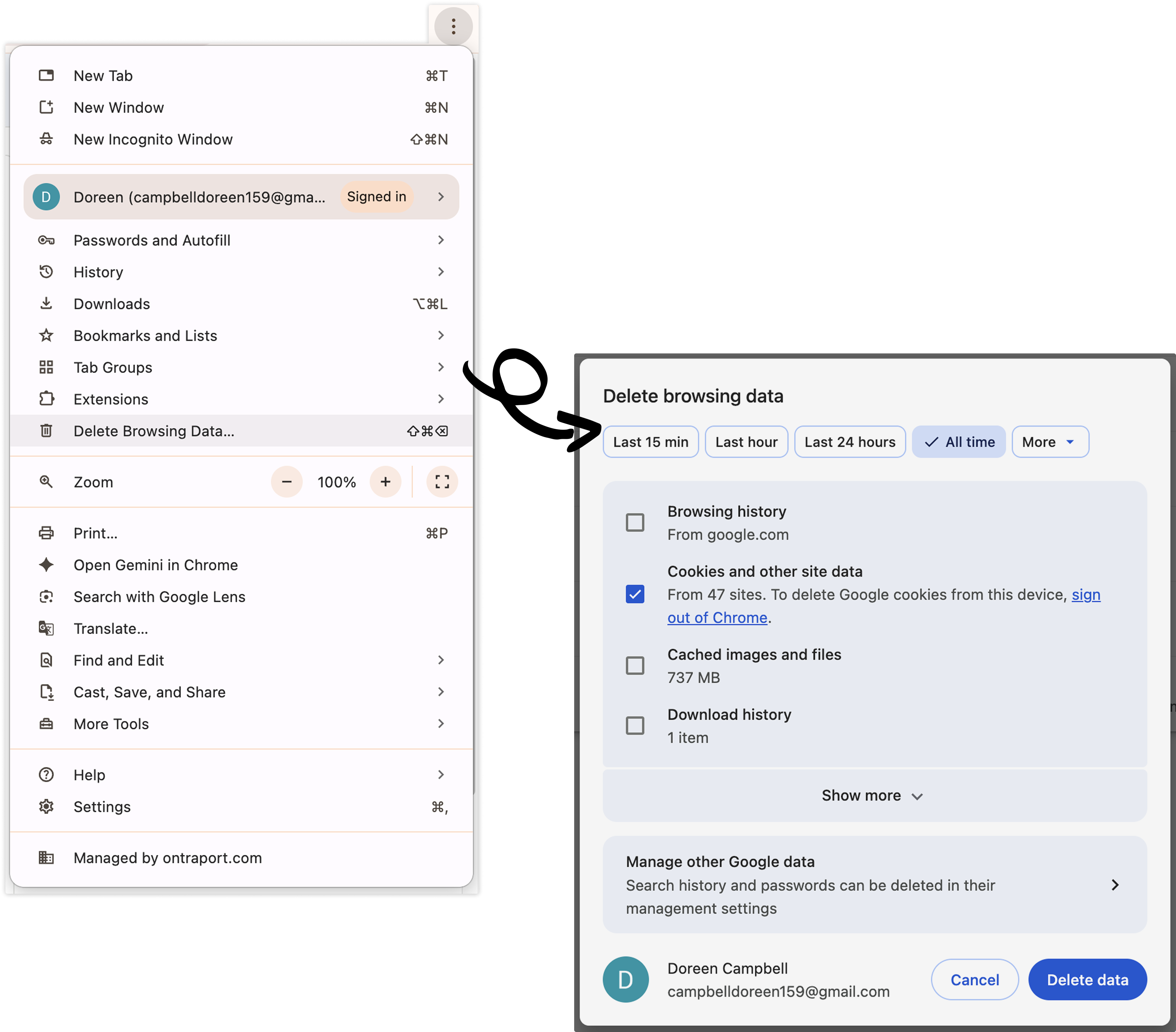
- Open Chrome, click the three dots in the top right corner → Delete browsing data. Choose a time range or select All time, then check “Cookies and other site data”, and click Delete data.
Mozilla Firefox
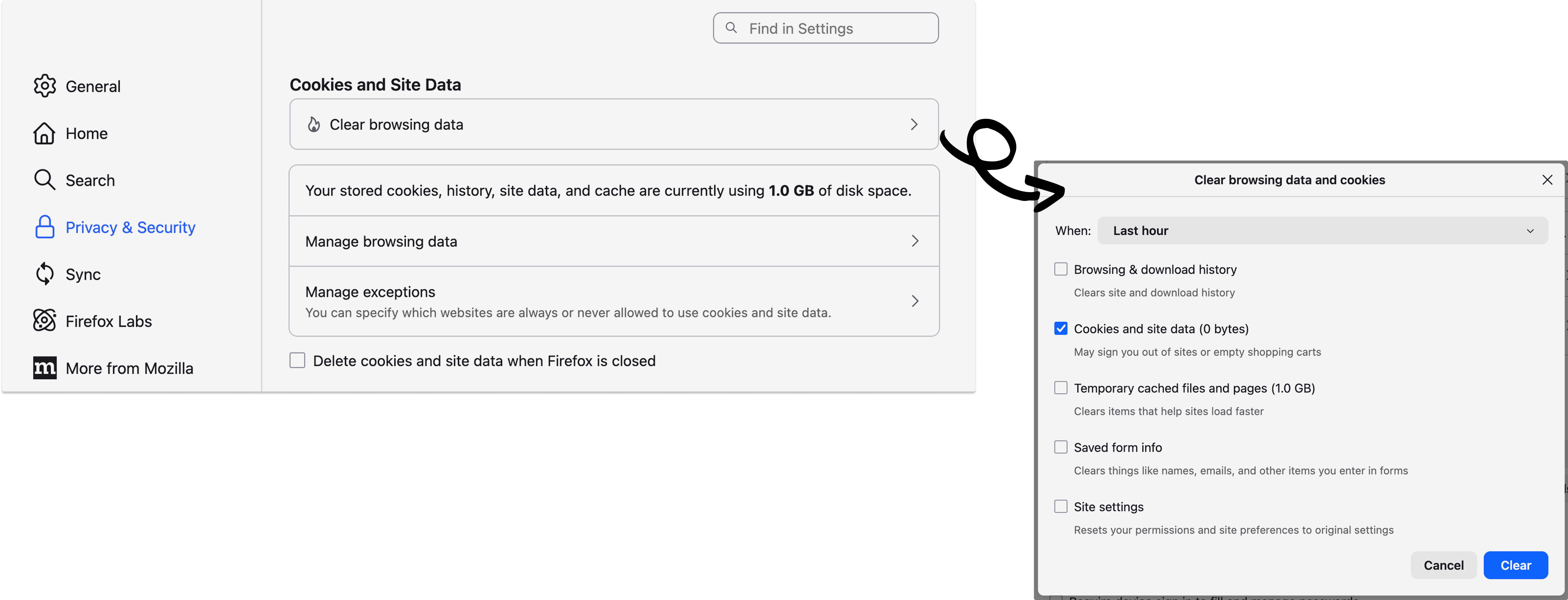
- Open Firefox, click the three lines in the top right corner → Settings → Privacy & Security. Scroll to the “Cookies and Site Data” section and click Clear browsing data check Cookies and site data. Then click Clear now. Close all open instances of Firefox.
Page troubleshooting
Back to top
Sometimes, things might work differently than planned when making or testing your Ontraport pages.
Here’s how to solve some common problems:
Slow form submissions
Back to top
If your form takes a long time to submit, it might be because certain settings slow it down. There’s a part in the form settings called “Don't redirect visitor to thank you page until…” These settings help make sure your thank you page shows all the information you want, just the way you want it. But the more boxes you check in this section, the longer it might take for the form to go through.
To fix this, go to the form’s advanced settings and check if you need all the options you’ve chosen in the “Don’t redirect visitor to thank you page until…” section.
My content isn’t appearing on my page
Back to top
If you can’t see some or all of your content on your page, there could be a few reasons why:
- You made changes but didn’t publish: If you edit a page and only save your changes, those updates will not appear on the live version of the page. Saving allows you to continue working on a draft while keeping the currently published version unchanged. Publish your pages each time you want to make an update live.
- The page redirects too soon: If your page is a thank you page, check your form's “Don’t redirect visitor to thank you page until…” settings. The system might need more time to update the information you’re showing on the page, especially if you use automation, display conditions, or rollup fields.
- Page or block display conditions: Sometimes, a block on your page might not appear because it has display conditions. This means it’s only supposed to show for certain people. If your test contact doesn’t fit the conditions, the block won’t appear.
- Custom code: If there’s custom code added to the page, it might block you from seeing certain content. Custom code can sometimes make things behave differently than expected. In addition to the custom code setting on pages, you may have a custom HTML element on your page.
I’m seeing a completely different page
Back to top
There are a couple reasons why when you visit your URL you may see a completely different page than expected.
- Split testing: If your page has split testing enabled, then you may be viewing the “B” or “C” versions of your page when you expected to see the “A” version.
- Page display conditions: If your test shows a different page than you expect, like a “no access” or login page instead of a course page, it might be because the test contact doesn’t meet the conditions for viewing that page.
“Your page isn’t turned on yet” error
Back to top/pages-publish-page_not_turned_on+1.png)
If you type in your page’s URL and see an error message that says, “Your page isn’t turned on yet,” it means a page has not been published to the URL you are trying to visit.
There are two main reasons why you might see this error:
- The URL you are trying to visit has a typo.
- The page is not published.
- If you set up your custom domain with Ontraport, then you need to publish pages to that domain before you can visit them. Follow these steps to publish pages and these steps to publish dynamic pages.