Promotional tools are the assets you’ll provide to your partners to promote and sell your products and services for you. They can be affiliate links, banners, lightboxes or HTML email messages.
The most common type of promo tools are affiliate links. Once you’ve created an affiliate link, a merge field will be created for it. You can use merge fields in an email message for your partners to provide them their unique affiliate link to start promoting your business.
To use other types of promo tools — banner, lightbox and email message — you need to create a WordPress partner center.
Table of contents
How promo tools track referrals
Create a new promo tool
Deliver affiliate links to partners
How promo tools track referrals
When a visitor clicks on a promo tool (like an affiliate link), it sets a cookie in their browser and takes them to the destination you set for the tool, such as an order form or a lead capture page.
If the cookied contact then fills out a form, the partner who shared the promo tool is credited as a referrer:
- First and Last Referrer: If the contact did not previously exist in your account, the partner becomes both their first and last referrer. First referrer will always stay the same, but Last Referrer can change.
- Last Referrer: If the contact already existed in your account, the partner becomes their last referrer.
You also have control over how long these tracking cookies last. You can set your partner's cookies to last forever, or choose to have them expire after a certain number of days.
Create a new promo tool
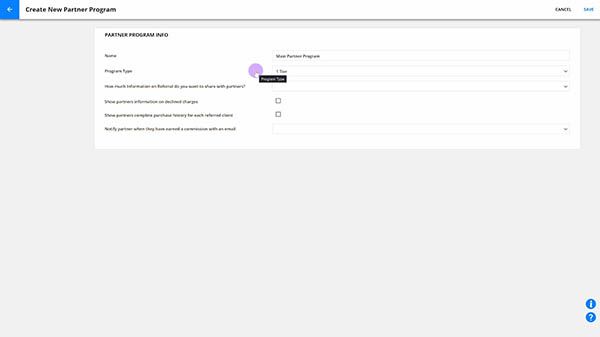
- If you haven’t set up your partner program, do that first.
- Go to Partners and click on your partner program.
- Make sure that you’ve added a commissionable product to your program.
- Go to Promo Tools → New promotional item.
- Promo tool name: Add your promo tool’s name
- URL to promote: Add the URL of the order page or opt-in form for your commissionable product.
- Product group (Optional): Add the name of the product group related to this promo tool.
- Campaign name (Optional): Add the name of the campaign related to this promo tool.
- Ad name (Optional): Add the name of the ad related to the promo tool.
- Promo tool type: Choose the type of promo tool you’d like to create. Choose from:
- Banner: Create a banner image for your partners to use in their marketing efforts. The banner will contain your partner’s affiliate link.
- Lightbox: Upload an image that you want to allow partners to use as a pop up in their marketing efforts.This lightbox will contain your partner’s affiliate link.
- Standard link (Recommended): This affiliate link securely cookies the visitor's browser and redirects through your Ontraport tracking domain before sending visitors to the URL to promote. The benefit of this redirect is that you can change the URL to promote without having to send your partners an updated link.
- Direct link: This affiliate link sends visitors directly to the URL to promote. If you change the URL to promote, the links your partners have already been issued will not automatically update to the new URL.
- Email: Draft an email message that your partners can use in their marketing efforts. Make sure that you include merge fields for your partners’ affiliate links in the message.
- Click Save.
Deliver affiliate links to partners
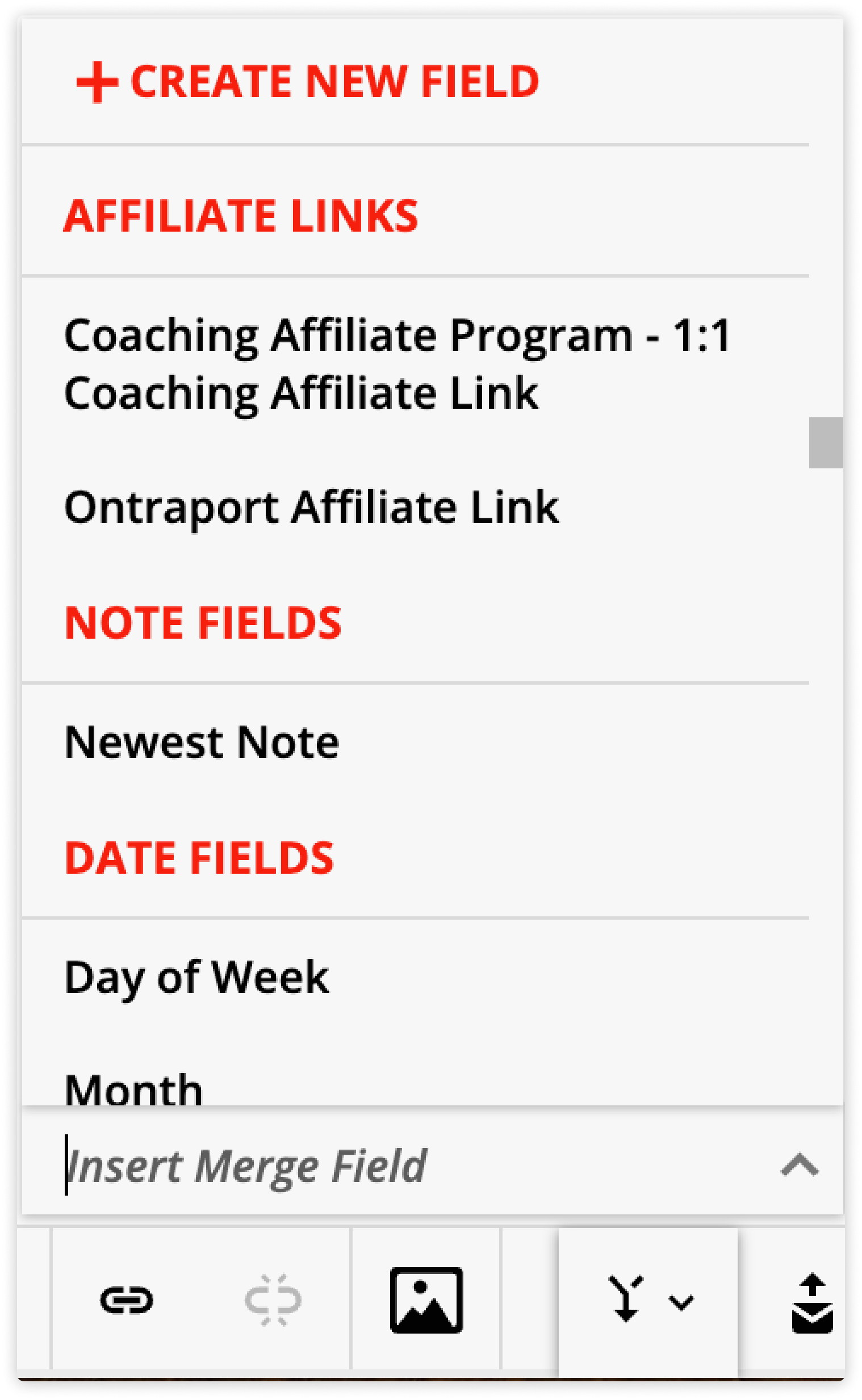
You can add your affiliate links to emails or pages by using a merge field. When your contact is a partner, the merge field will populate with their unique link.
- Click the merge field icon and scroll down to the “Affiliate links” section.
- Click on the item that matches your Partner program and promo tool name.
- Every account also has an “Ontraport Affiliate” link which is a link you can use to promote Ontraport and collect commission on referred accounts.